ubuntu grub修复启动项

Grub Rescue commands</b></span> </span>I</span>f Grub is missing</b> after installing Ubuntu and screen is showing Grub Rescue</b>, then Ubuntu grub</b> rescue or restore</b> has to done. It can be done through Ubuntu Server CD or Ubuntu Desktop CD</b>. </span>
If a</span>t system start up you might be seeing the option Grub Rescue or Grub missing</b> option then you need to follow the below commands.</span></span></span>

This article will show how to do Ubuntu grub rescue</b> with screen shots using Ubuntu Desktop CD. These screenshots</span>  have been taken on Ubuntu 11.04. The very same method can be used to repair grub mint Debian</b>. </span></div>
If you don't have the desktop CD then you can use</span> Ubuntu server CD or USB also. </span></span>

To do grub rescue through Ubuntu Server CD see </span></div>
"Install Grub from Ubuntu server CD</b></i>".</span>

NOTE:</b></i>  </b>You will get </span>/usr/sbin/grub-probe: error: cannot stat 'aufs'</span></b>  error if </span>you didn't follow the commands listed below. Specifically you did not do chroot,
i.e. sudo chroot /mnt</b></i></span>. </span>

For Ubuntu grub rescue</b> follow these steps:</span>
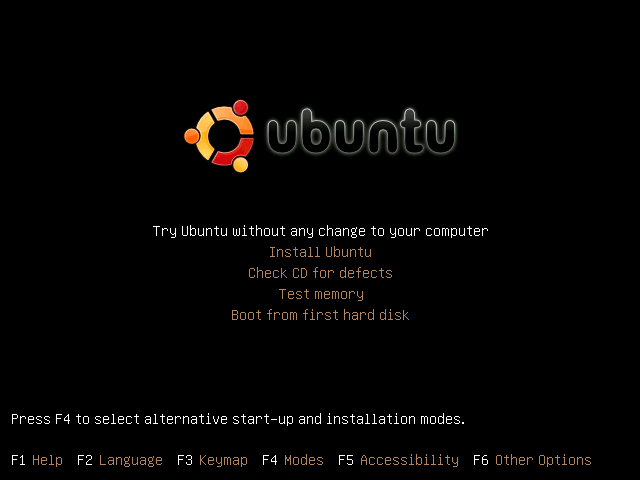
1.Boot from the Ubuntu Desktop live CD</b>. </span>


</span>
</td>
</tr>

Ubuntu grub rescue-1</td>
</tr>
</tbody>
</table>

</div>
                          Select Try Ubuntu.     </span>
</a>
</span>2.In Live Desktop session open terminal. </span>
  Application ->Accessories->Terminal.</span>

</span>3. In Terminal tpye sudo fdisk -l</b>   </b>. </span></b></i></span>
    </span></b></i>It will display all partiton of the disk.</span></span></span>

Screenshot from 2013-02-12 22:16:19</a></td>
</tr>

Ubuntu grub rescue screenshot-2</td>
</tr>
</tbody>
</table>

</div>
 </span></span></b></i></span>
The partation which have Linux</b></i> under System</b></i> column is your drive in which ubuntu linux is installed. In screenshot ubuntu partition drive is /dev/sda11</b></i>.</span>

</span>4. Mount the ubuntu partition drive</span>
     </span>  sudo mount /dev/sdXX /mnt</b></i> </span> (example 'sudo mount /dev/sda11 /mnt' ,don't miss the spaces.)</span>

</span>5.</span>Only if you have a separate boot partition: </span>

   </span>         sudo mount /dev/sdYY /mnt/boot.</i></b></span></div>

 6.  </span>Mount the virtual filesystems: </span>
            </b></i></span>
            sudo mount --bind /dev /mnt/dev</b></i></span>

            sudo mount --bind /proc /mnt/proc </b></i></span>
            sudo mount --bind /sys /mnt/sys</b></i></span></div>
7. </span>To ensure that only the grub utilities from the LiveCD get executed, mount /usr </span>     </span>
     sudo mount --bind /usr/ /mnt/usr</b></i> </b></i></span>
     sudo chroot /mnt </b></i></span> </span>

8. If there is no /boot/grub/grub.cfg or it's not correct, create one using</span> </span>
           update-grub</b></i> </span>
      or  update-grub2</b></i></span>

</div>

9.Now reinstall Grub  </b></i></span>
         grub-install /dev/sdX</b></i>  (e.g. grub-install /dev/sda. Do not specify the partition number.</span>   </span></div>

 10. Verify the install </span>
        sudo grub-install --recheck /dev/sdX</b></i></span></div>

11. Exit chroot : CTRL-D</b></i> on keyboard.</span></div>

12. </span>Unmount virtual filesystems:</span>  </b></i></span>
           sudo umount /mnt/dev</b></i> </b></i></span>
           sudo umount /mnt/proc</b></i></span>
           sudo umount /mnt/sys</b></i></span> </span>

If you mounted a separate /boot partition:</span>  </span>
           sudo umount /mnt/boot</b></i> </span>

13. Unmount the LiveCD's /usr directory:</span> </b></i></span>
          sudo umount /mnt/usr</b></i></span>

14. Unmount last device: </b></i></span>
           sudo umount /mnt</b></i> </span>

</div>

</div>
15. Reboot. </b></i></span>
         sudo reboot.</b></i></span>

NOTE:</b></i> </b>If you are getting </span>/usr/sbin/grub-probe: error: cannot stat 'aufs'</span>  error then the possible reason is that </span>you didn't follow the commands listed above. Specifically you did not do chroot,
ie sudo chroot /mnt</b></i></span>.
Follow the above steps correctly and you are done.

</div>